
Troubleshooting: Correct Permissions
Support - Troubleshooting - Correct Permissions
Permissions needed for PlatoApp
If you experience any problems with PlatoApp, it is likely to be caused by problems with the permissions on your phone. If your PlatoWork headset is turned on (blue light is blinking on left side of headset) but the PlatoApp cannot find it, please follow the below guides to ensure the correct permissions are enabled on your phone:
Guide to correct permissions on iOS
Guide to correct permissions on Android
Permissions explained
At PlatoScience, we take data privacy very seriously – and one of the key approaches to achieve this is to never collect any information not needed for the core functionality of the product.
Unfortunately, since our app runs on Apple and Android devices, there are factors outside of our control when it comes to which permissions are needed on your device:
Location permissions
In most Apple and Android devices, there is a direct link between using Bluetooth and permissions, as Bluetooth can be used to exactly identify the location of a phone. Therefore, to be able to use Bluetooth to connect with the PlatoWork headset, it is by default necessary to allow for (precise) location. Due to this, we are forced to request location permission, even though this is not something that is used by the PlatoApp.
Bluetooth permissions
Since the PlatoWork device communicates with PlatoApp via Bluetooth, it is necessary for the app to have permission to use Bluetooth. On newer phones/operating systems it is furthermore required to activate a sub-version of Bluetooth, allowing for ‘Nearby devices’, to allow for the PlatoApp to communicate with the PlatoWork headset.
See the step-by-step guides below to give the right permissions on your phone. If you have any questions, you are always welcome to contact us directly.
Email: hi@platoscience.com
Phone: +45 65 74 64 10 (Mon-Fri 08-16 CET)
Messenger
Guide to correct permissions (iOS)
If your PlatoWork headset is on (indicated by the blinking blue light on the left side) but the PlatoApp cannot detect it and prompts you to enable Bluetooth even though it is already turned on, the issue is likely that the app's Bluetooth permission is disabled in your iOS settings.
Please follow the steps below to make sure the correct permissions are enabled.
Note: The exact interface and wording may vary slightly depending on your iOS version.
Step-by-Step Guide:
-
Open Settings
Locate and tap the Settings icon on your iPhone’s home screen. -
Find PlatoApp
Use the search bar at the top of the Settings screen to search for PlatoApp, then tap on it. -
Enable Bluetooth Permission
Make sure the Bluetooth toggle is turned on. -
Relaunch PlatoApp
Close and reopen PlatoApp, then confirm that it can successfully connect to your PlatoWork headset.
Follow the visual guide below to make sure your settings are correct:
1. Go to “Settings” - Tap the Settings icon on your iPhone’s home screen

2. Search for PlatoApp - Use the search bar at the top of Settings and tap PlatoApp


3. Enable Bluetooth - Make sure the Bluetooth toggle is switched on

4. Relaunch PlatoApp - Close and reopen the app, then check that it connects to your headset.
Guide to correct permissions (Android)
If you experience any problems with PlatoApp, it is likely to be caused by problems with the permissions on your phone. If your PlatoWork headset is turned on (blue light is blinking on left side of headset) but the PlatoApp cannot find it, please make sure the following permissions are enabled on your phone:
- Location permissions (with “precise location”)
- Nearby devices
If either one of the above permissions is turned off, or if “precise location” is toggled off, the app will not be able to connect by bluetooth to your PlatoWork (see above why these permissions need to be enabled).
This is a known problem with some phones running Android version 12 and 13 (Google Pixel, most Samsung models), as they require additional permissions to allow for in-app Bluetooth connections.
Please follow the steps below to confirm that you have the correct settings. The interface and the exact terms used may vary among Android devices:
- Go to "Settings” on your phone and tap "Apps".
- Find PlatoApp on the list of apps, select it
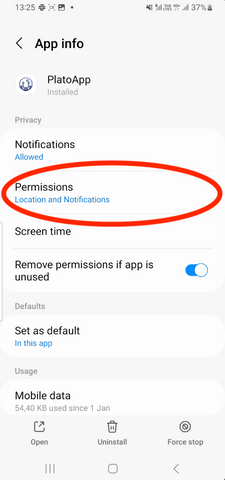
- Tap "Permissions" inside the PlatoApp section
- Choose "Location" and make sure it is set to “Allow only while using the app”. Also, if the option to “Use precise location” is there, it must be on/enabled.
- Go back to the "Permissions” PlatoApp section
- Choose “Nearby devices”, set to “Allow”.
- Open PlatoApp and confirm that it can connect to the PlatoWork headset.
This is how the steps look:
1. Go to "Settings” on your phone - locate the Setting symbol on your home screen:

and tap "Apps"

2. Find PlatoApp on the list of apps, select it:

3. Tap "Permissions" inside the PlatoApp section:
4. Choose "Location"

and make sure it is set to “Allow only while using the app”. Also, if the option to “Use precise location” is there, it must be on/enabled:

5. Go back to the "Permissions” PlatoApp section

6. Choose “Nearby devices”

and set to “Allow”:

7. Open PlatoApp and confirm that it can connect to the PlatoWork headset

Alternative guide
If the above guide does not match the information in the Settings on your phone, see an alternative guide below.
- Go to the Settings, and then select the Apps menu.
- Tap on the more options (three vertical dots) icon in the upper right corner.
- Choose the Permission manager.
- Choose “Location”, choose PlatoApp and change the Location setting to “Allow only while using the app”. Also, if the option to “Use precise location” is there, please set it so it is on/enabled.
- Go back to permission manager.
- Choose “Nearby Bluetooth devices”, choose PlatoApp and change the “Nearby devices permission” to “Allow”.
- Open PlatoApp and confirm if it can connect to the PlatoWork headset.
If you experience any problems with the above guides, or the problem persists, please contact us directly on hi@platoscience.com or via phone +45 6574 6410 (Mon-Fri 08-16 CET) and we will be happy to help.
Other support topics
At PlatoScience, we're here for you every step of the way.
Navigate to the support you need by selecting below.